Experience Esther / UX in Doodles
10 Usability Heuristics, Explained with Doodles
Nielsen's 10 rules for designs people don't rage-tap, in plain words.
In 1990, usability experts Jakob Nielsen and Rolf Molich published a short list of rules of thumb for spotting usability problems, and in 1994 Nielsen refined it into the 10 used today. Designers call them heuristics, which is a fancy word for "rules that are usually right." More than 30 years later, designers still use them to review apps and websites.
Here's each one in plain words, with a doodle, a real-life example and a quick check you can use on your own designs.
Watch the 60-second version
1. Visibility of system status
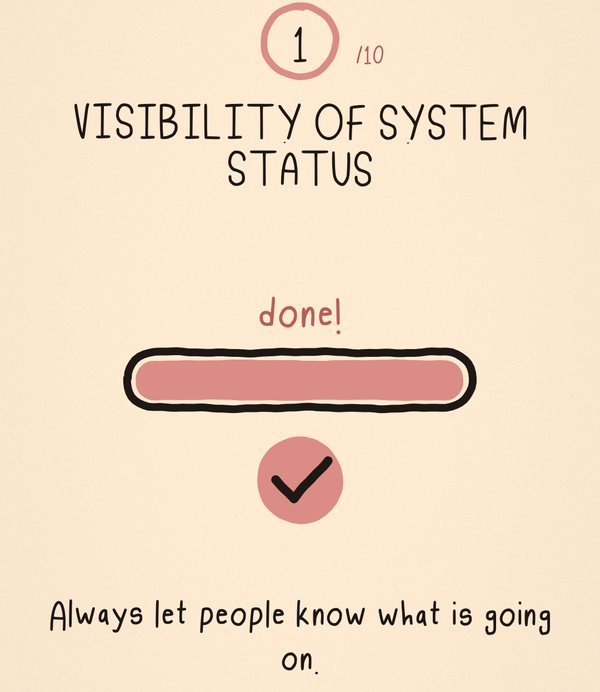
Always let people know what is going on.
You tap "pay" and the screen just... sits there. Did it work? Should you tap again? Now you're scared you paid twice. A tiny spinner, a progress bar or a "done!" would have saved you all that worry.
Quick checkAfter every tap, does the screen show something within a second?
2. Match between the system and the real world
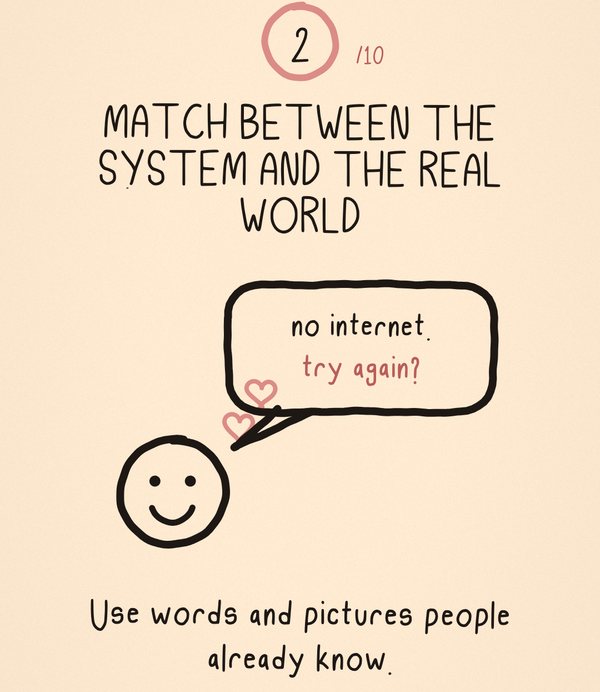
Use words and pictures people already know.
"ERROR 0x8F4C" means nothing to a human. "No internet, try again?" does. The same goes for icons: a trash can for delete works because it looks like the real thing.
Quick checkRead your screen out loud to someone outside your field. Do they stumble on any word?
3. User control and freedom
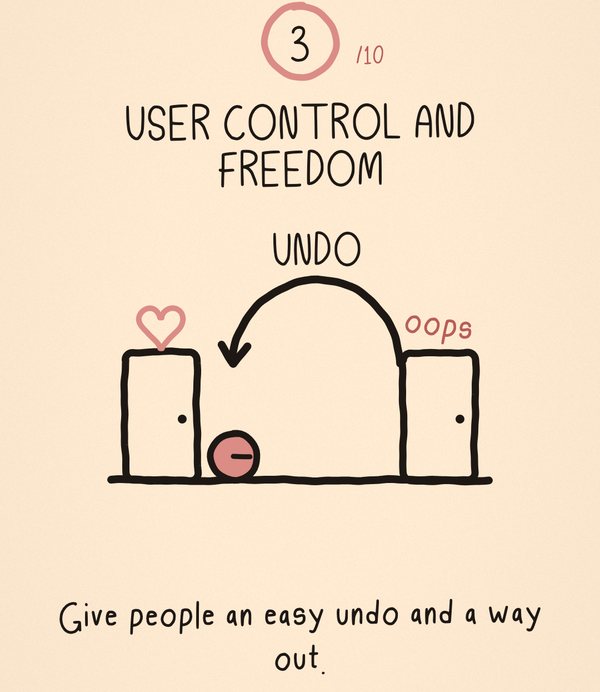
Give people an easy undo and a way out.
Everyone taps the wrong thing sometimes. Gmail's "Undo send" is loved for a reason. When people know they can step back, they feel safe enough to explore.
Quick checkFrom every screen, can someone go back, cancel or undo without starting over?
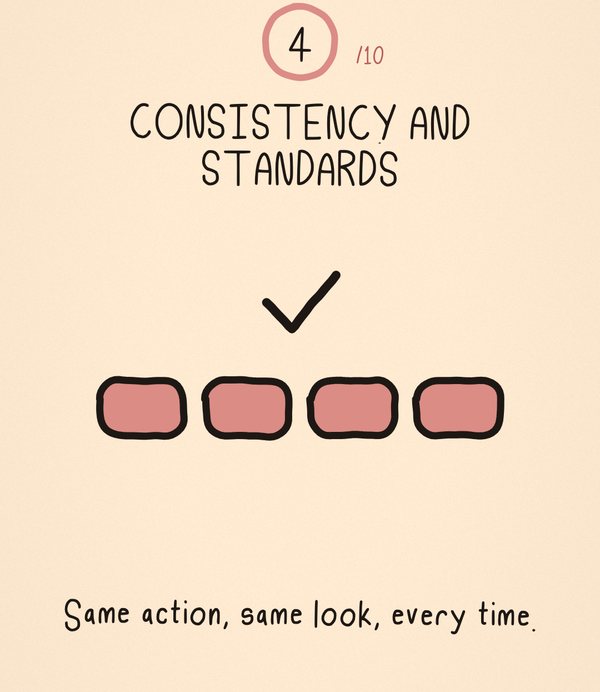
4. Consistency and standards
Same action, same look, every time.
If "save" is a pink button on one page and a grey link on the next, people have to stop and think. People spend most of their time in other apps, so follow the patterns they already know.
Quick checkDo buttons that do the same thing look and sound the same everywhere?
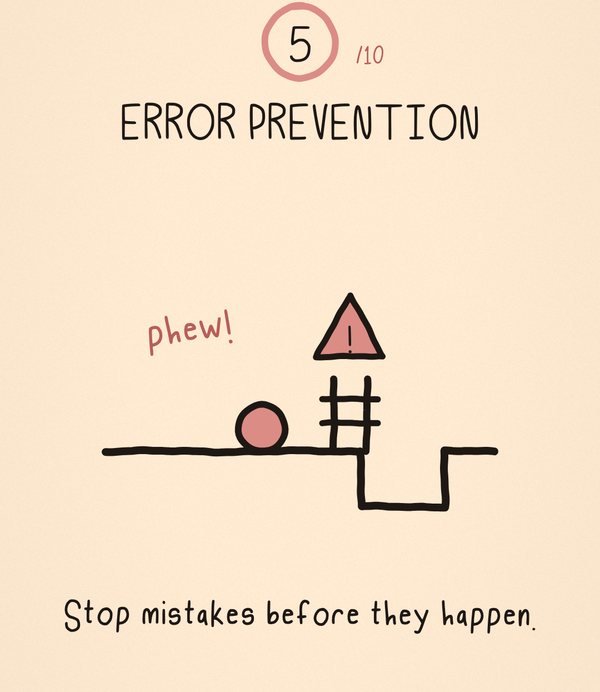
5. Error prevention
Stop mistakes before they happen.
A good error message is nice. Never needing one is better. Greying out a "book" button until a date is picked, or asking "delete all 300 photos?" before it happens, is like putting a fence before the hole.
Quick checkWhere could someone make an expensive mistake, and can the design block it first?
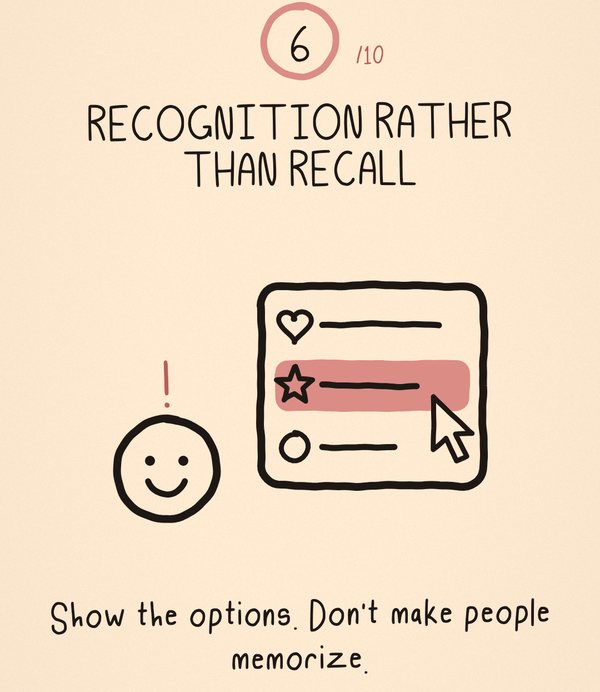
6. Recognition rather than recall
Show the options. Don't make people memorize.
Our short-term memory is tiny. Menus, recent searches and visible labels let people recognize what they want instead of digging it out of their head.
Quick checkDoes any step ask people to remember something from a previous screen?
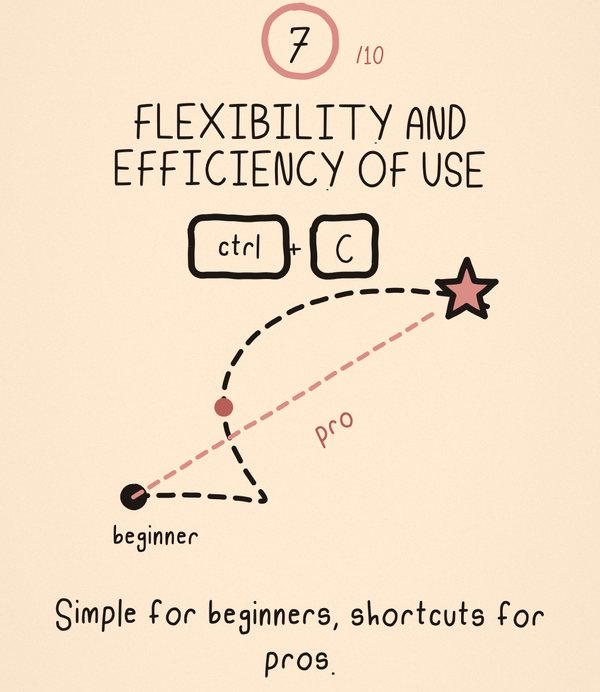
7. Flexibility and efficiency of use
Simple for beginners, shortcuts for pros.
Beginners click through menus. Pros press ctrl + C. Good design serves both: the clear path is there for everyone, and shortcuts, gestures and saved settings speed up the people who come back every day.
Quick checkIs there a faster way for frequent users that doesn't confuse new ones?
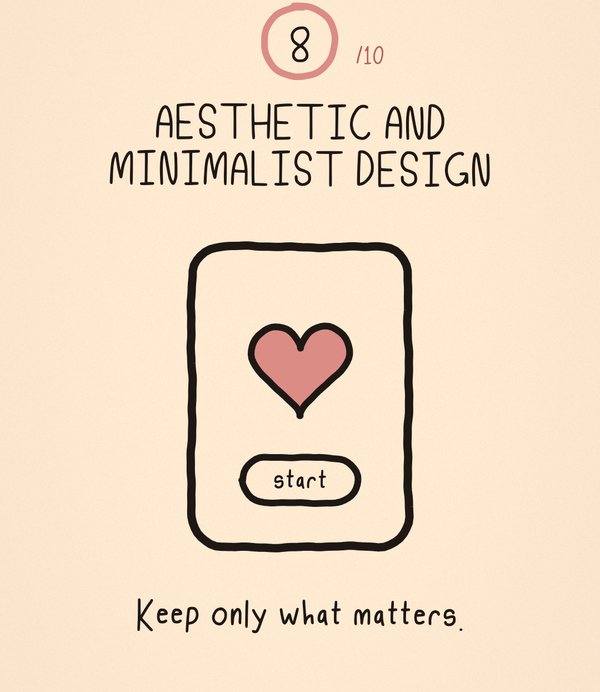
8. Aesthetic and minimalist design
Keep only what matters.
Minimal doesn't mean empty or grey. It means every extra thing on the screen competes with the important thing. Clearing the clutter lets the one action that matters stand out.
Quick checkPoint at each element on the screen. Would anyone miss it if it disappeared?
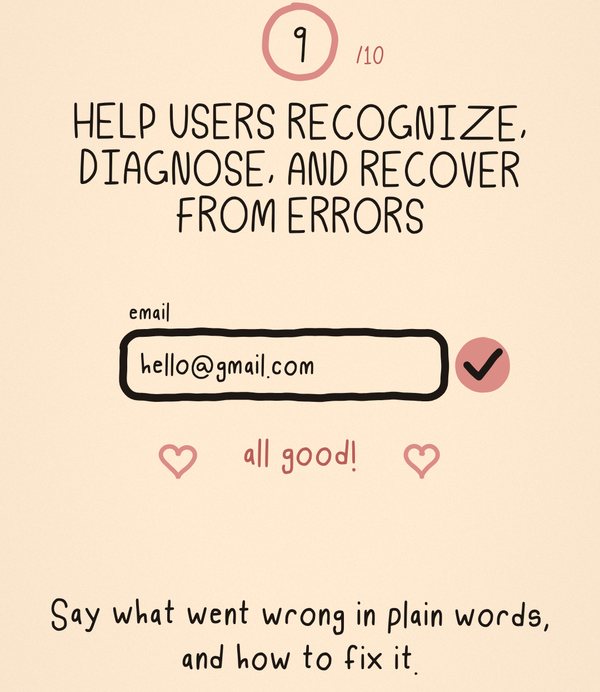
9. Help users recognize, diagnose, and recover from errors
Say what went wrong in plain words, and how to fix it.
"Invalid input" leaves people stuck. "Oops, an email needs an @" tells them exactly what to fix. A good error message names the problem, uses human words and points to the way out.
Quick checkDoes every error message say what happened and what to do next?
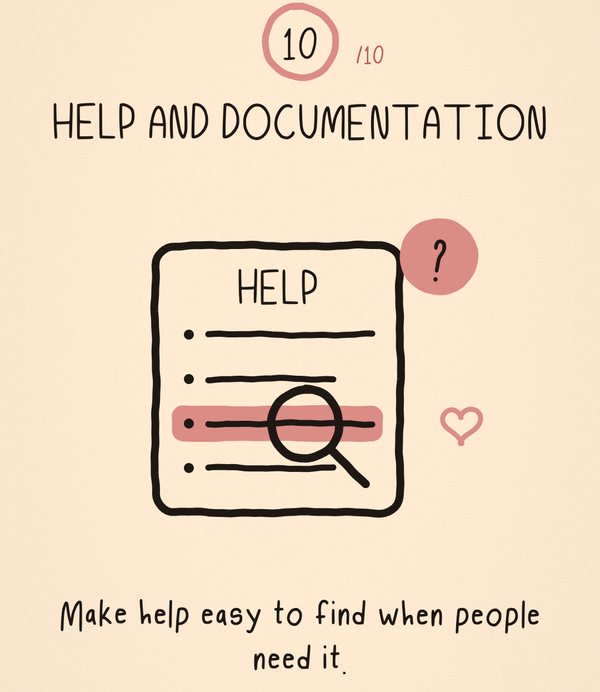
10. Help and documentation
Make help easy to find when people need it.
The best design barely needs instructions, but sometimes people still get stuck. Help should be easy to search, short, and right where the question comes up, like a little "?" next to a confusing field.
Quick checkIf someone gets stuck on this screen, how many taps until they find an answer?
Sources
- Nielsen, J. (1994, updated 2026). 10 Usability Heuristics for User Interface Design. Nielsen Norman Group.
- Nielsen, J. (1994). Enhancing the explanatory power of usability heuristics. Proceedings of the ACM CHI'94 Conference on Human Factors in Computing Systems, 152–158.
- Nielsen, J., & Molich, R. (1990). Heuristic evaluation of user interfaces. Proceedings of the ACM CHI'90 Conference on Human Factors in Computing Systems, 249–256.
- Yablonski, J. Jakob's Law. Laws of UX. (Supports the point in rule 4 that people spend most of their time in other apps.)
Plain-language explanations, examples and drawings by Esther Joy, based on the sources above. Video: 10 Usability Heuristics in 60 Seconds, @EstherEXP.